本站系统关闭了基于虚拟化的安全性(VBS),另外默认系统精简了Microsoft Defender导致没有设置内存完整性(内存隔离)开关。本意是想让系统运行速度更快,还能解决玩游戏帧数大降,让游戏更流畅运行。但是有极少数游戏需要开启此项才能正常运行,特提供下面快速开启与关闭代码方便一些需要的朋友。
开启虚拟化的安全性(VBS)前提:(新机一般是默认开启状态)
1、必须BIOS开启安全启动(Secure Boot)。
2、BIOS确保 Intel VT-x 或 AMD-V 功能已启用。(对应interl主板与AMD主板)
根据需要运行完下面的批处理后(一定要重启),可通过“Win+R”,运行“msinfo32”来查询是否开启成功。
批处理下载地址
启用 VBS 和内存完整性脚本
@echo off

:: 请求管理员权限

fltmc >nul 2>&1

if %errorlevel% neq 0 (

    powershell -Command "Start-Process -Verb RunAs -FilePath '%~f0' -WorkingDirectory '%~dp0'"

    exit /b

)

echo 正在添加注册表项以启用 VBS 和内存完整性...

c:\windows\system32\bcdedit.exe /set hypervisorlaunchtype auto

reg add "HKLM\SYSTEM\CurrentControlSet\Control\DeviceGuard" /v "EnableVirtualizationBasedSecurity" /t REG_DWORD /d 1 /f

rem reg add "HKLM\SYSTEM\CurrentControlSet\Control\DeviceGuard" /v "RequirePlatformSecurityFeatures" /t REG_DWORD /d 1 /f

reg add "HKLM\SYSTEM\CurrentControlSet\Control\DeviceGuard\Scenarios\HypervisorEnforcedCodeIntegrity" /v "Enabled" /t REG_DWORD /d 1 /f
echo 电脑的BIOS,确保 Intel VT-x 或 AMD-V 功能已启用
echo 操作完成,请重启电脑。
pause
关闭VBS和内存完整性脚本
@echo off

:: 请求管理员权限

fltmc >nul 2>&1

if %errorlevel% neq 0 (

    powershell -Command "Start-Process -Verb RunAs -FilePath '%~f0' -WorkingDirectory '%~dp0'"

    exit /b

)

echo 正在添加注册表项以关闭 VBS 和内存完整性...

c:\windows\system32\bcdedit.exe /set hypervisorlaunchtype off

reg add "HKLM\SYSTEM\CurrentControlSet\Control\DeviceGuard" /v "EnableVirtualizationBasedSecurity" /t REG_DWORD /d 0 /f

reg add "HKLM\SYSTEM\CurrentControlSet\Control\DeviceGuard" /v "RequirePlatformSecurityFeatures" /t REG_DWORD /d 0 /f

reg add "HKLM\SYSTEM\CurrentControlSet\Control\DeviceGuard\Scenarios\HypervisorEnforcedCodeIntegrity" /v "Enabled" /t REG_DWORD /d 0 /f
echo 操作完成,请重启电脑。
pause
附微软官方推荐验证方法:
1、以管理员身份打开 PowerShell
2、执行命令:Get-CimInstance -ClassName Win32_DeviceGuard -Namespace root\Microsoft\Windows\DeviceGuard
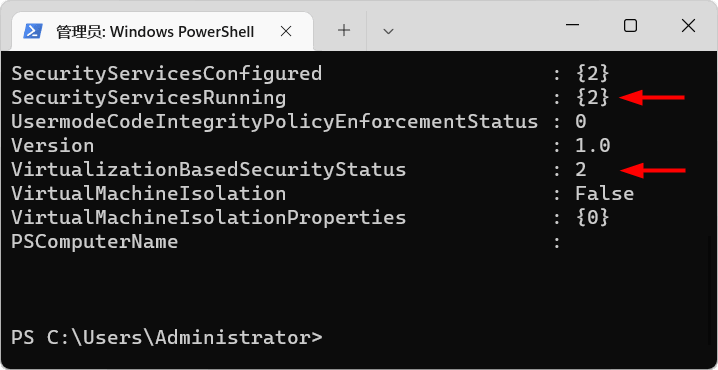
3、检查输出结果中的VirtualizationBasedSecurityStatus和SecurityServicesRunning这两个字段,如果是“2”,表示已启用且正在运行。